Documentation
ChatGPT Account – Login, 2FA & CODEX Activation Guide
A step-by-step reference for signing in, retrieving verification codes, updating two-factor authentication, and completing CODEX phone verification.
How to Get Your 2FA Verification Code
Follow the steps below to get the 6-digit verification code required when logging into your account:
-
1
Log in to your account
Follow the screenshots below to open ChatGPT and start signing in with the account details from your order.
1.1 Open ChatGPT
Go to chatgpt.com in your browser.
IMPORTANTIf you are on mobile, tap email login at the bottom directly.
1.2 Click Log in
In the top-right corner, click the dark Log in button. Depending on your language, it may appear as “Log in”, “Войти”, or “Giriş yap”.
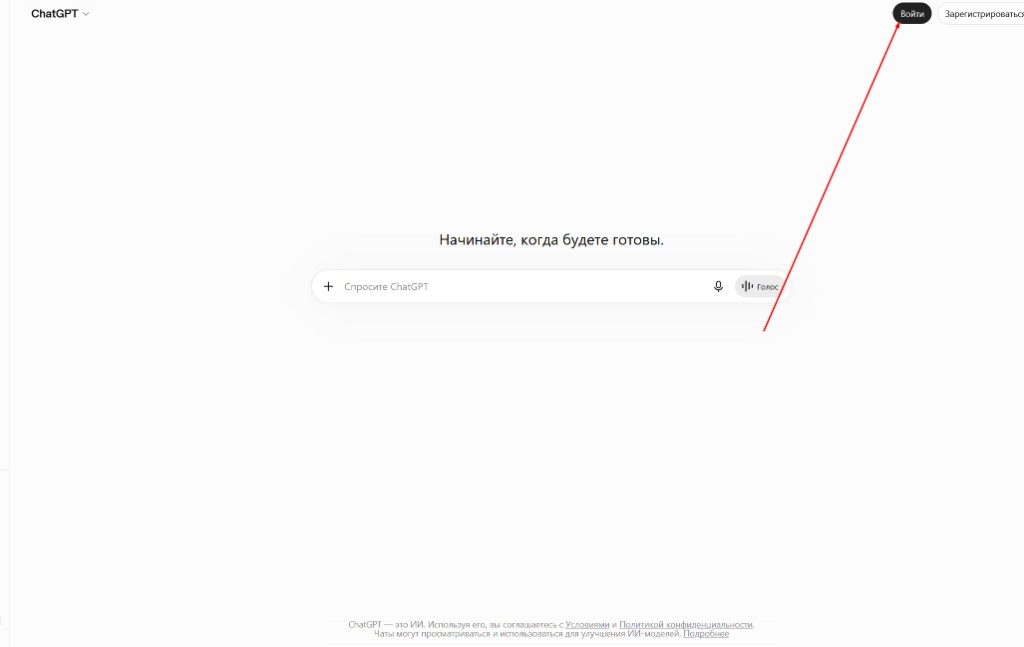
Click the Log in button in the top-right corner. 1.3 Choose email login
Do not use Google, Apple, or phone login. At the bottom of the window, select the email address field and continue with email and password.
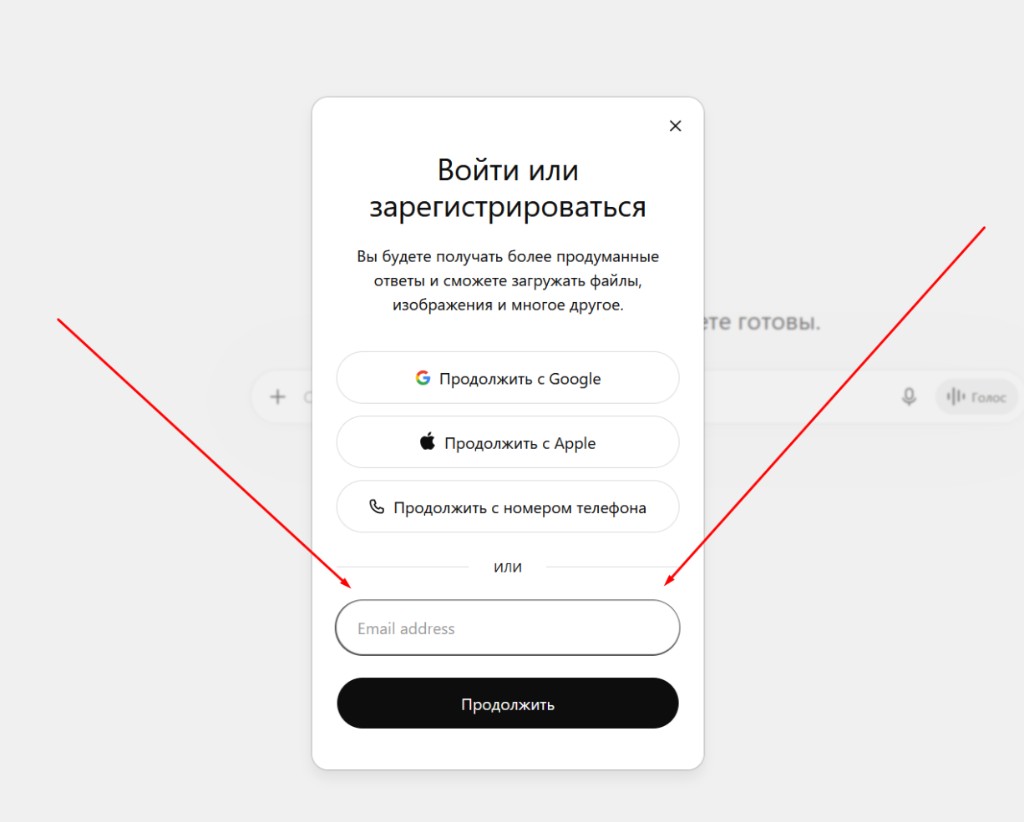
Use the Email address field at the bottom, then click Continue. 1.4 Enter your account details
Enter the account email and password provided with your order, then continue.
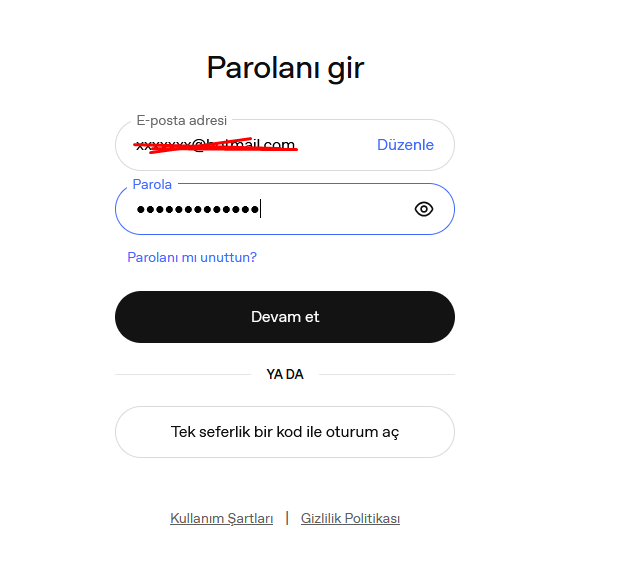
Enter the password from your order, then click Continue. 1.5 Verification code page
After you enter the password, the verification code page appears. Leave this page open and continue with the next steps to get your 6-digit code.
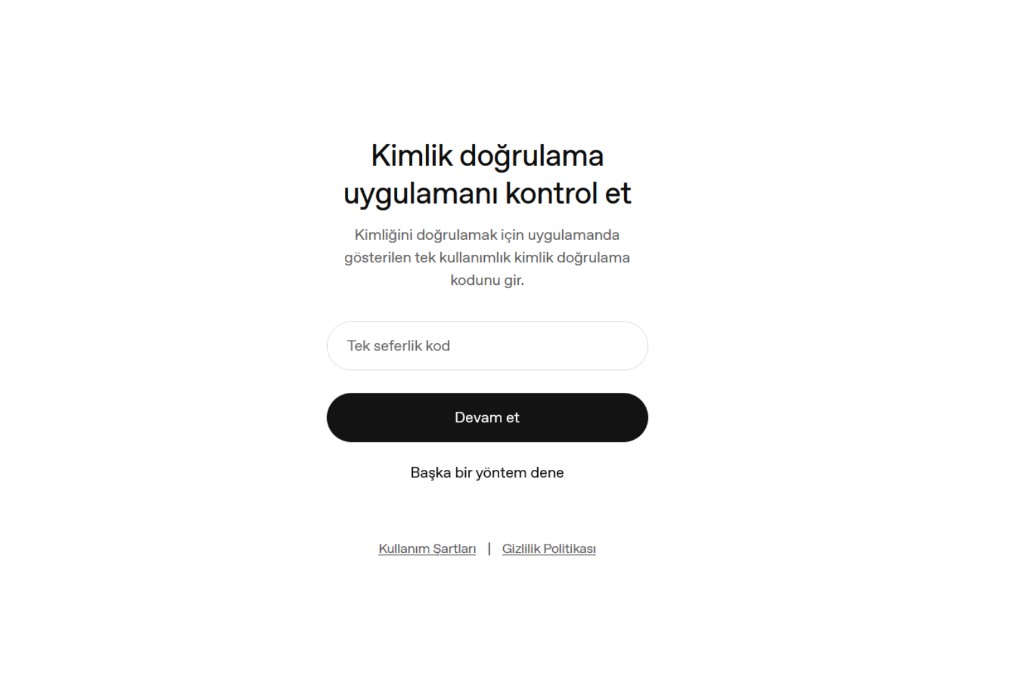
This is the page where you will enter the 6-digit verification code. - 2
-
3
Paste your 2FA Key
Copy the 2FA Key provided with your order and paste it into the 2FA Secret field on 2fa.fun or 2fa.cn, then click Submit.
ATTENTIONDo not enter your account password here. You should only enter the 2FA Key provided to you.
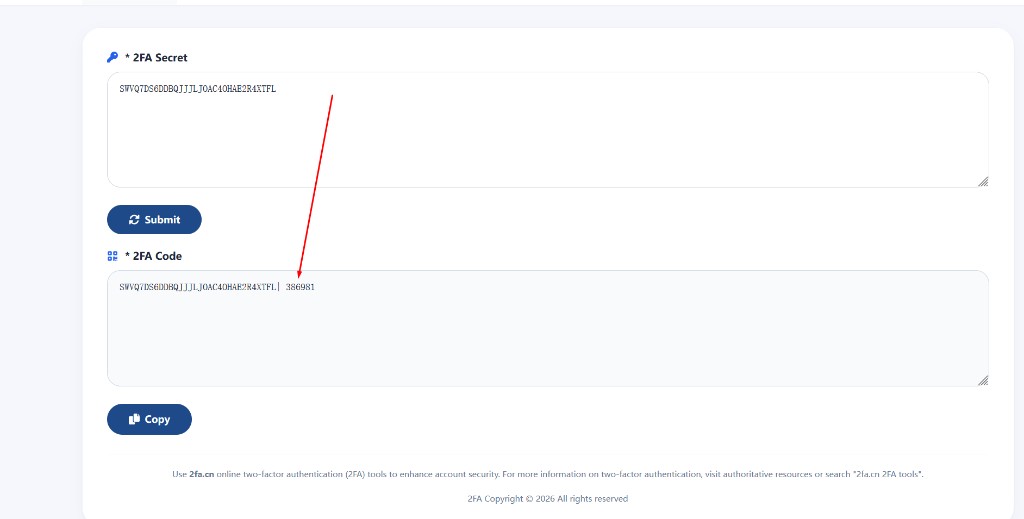
Paste the 2FA Key into the top field, then copy the 6-digit code shown on the right. -
4
Copy the verification code
After the 2FA Key is entered correctly, the site generates a 6-digit one-time verification code.
Copy only the 6-digit code (for example, the number shown after the | symbol).
IMPORTANTEnter the verification code within 10 seconds at the latest. Each code is valid for about 10–15 seconds. If it expires, copy the new code from the 2FA site and try again.
If ChatGPT says the code is incorrect while you are using 2fa.cn, generate a new code on 2fa.fun and try again. We have identified a possible issue with 2fa.cn; switching to 2fa.fun may resolve the problem.
Possible Problems
Click a question below to open the solution.
I’m getting an “Incorrect 2FA Code” error — what should I do?
VERY IMPORTANT — If You Get an “Incorrect 2FA Code” ErrorIf you receive an “Incorrect 2FA code” or similar error even after entering the generated verification code, first check the 2FA Key you are using.
In some cases, your browser's automatic translation feature, keyboard settings, or language settings may cause some characters in the copied 2FA Key to be entered incorrectly or changed.
Make sure to check:
- Compare the original 2FA Key provided by the seller with the key you pasted into the 2FA website, character by character.
- Even a single incorrect letter or number can cause an invalid verification code to be generated.
- Whenever possible, do not type the 2FA Key manually. Use copy → paste instead.
Still unable to log in?If you have confirmed that the 2FA Key is completely correct but you still cannot log in, do not keep trying repeatedly. Contact the seller/support team and report the issue.
Tell the support team that you are receiving an “Incorrect 2FA code” error. If necessary, they can verify whether the 2FA information provided to you is correct.
SUMMARYFirst, make sure the 2FA Key was copied correctly. If the key is correct and the problem continues, contact the support team.
When logging in, it redirects me directly to the email code — what should I do?
NOTEYou probably did not sign in with email and password, or leftover browser cache/session is conflicting with the system. Try signing in from your phone first — you should see that everything works. Then on your computer, change the VPN: if you connect from the EU, use a USA location temporarily; if you connect from Russia, use a higher-quality VPN. If the error continues, message us and we will fix it.
-
5
Return to ChatGPT and enter the code
Go back to chatgpt.com / the verification code page that stayed open after login.
Paste the generated 6-digit code into the one-time code field, then click Continue.
Enter the 6-digit code in the one-time code field and click Continue.
Done. If the code is correct, you will be able to log in to your account.
Each 6-digit code is valid for about 10–15 seconds. Enter it within 10 seconds. If it expires, return to the 2FA site and use the newly generated code.
After your first successful login, replace the existing 2FA configuration with your own authenticator.
How to Remove and Change 2FA
After you successfully log in to the account, follow the steps below to remove the current authenticator and set up your own 2FA Key.
If you live in Russia, we strongly recommend completing every step in the mobile app. First create the Passkey on your phone, then proceed to the 2FA change. We will not provide a replacement account for accounts that are redirected to email verification while attempting to change 2FA on a computer. Best and strongly recommended method: create the Passkey on your phone.
If the system redirects you to email verification while you are trying to add 2FA after completing these steps, preferably sign in to the account again in a private/incognito window. However, never sign out of the account before creating the Passkey; keep the account open in the mobile app on your phone.
If you live in Russia and use a low-quality VPN, enable passkey login and create a passkey before turning App Auth off and on again.
ChatGPT will redirect you to the email address and password screen. Enter all your details completely, then enter the requested 2FA code to activate the passkey. Once the passkey is active, you can turn App Auth off and on again and configure your own authenticator app.
If, while App Auth is still enabled, the system redirects you to email code verification instead of the 2FA code field during passkey setup—even though you entered your password correctly—do not turn App Auth off. Message us; our support team will create a QR code for you and send it to you.
If the system allows you to continue with the passkey, enable passkey login first, then reconfigure App Auth.
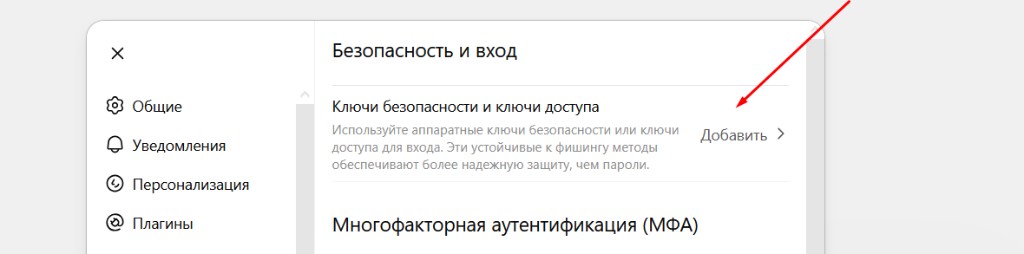
-
1
Open Security and login
Open account settings and go to Security and login.
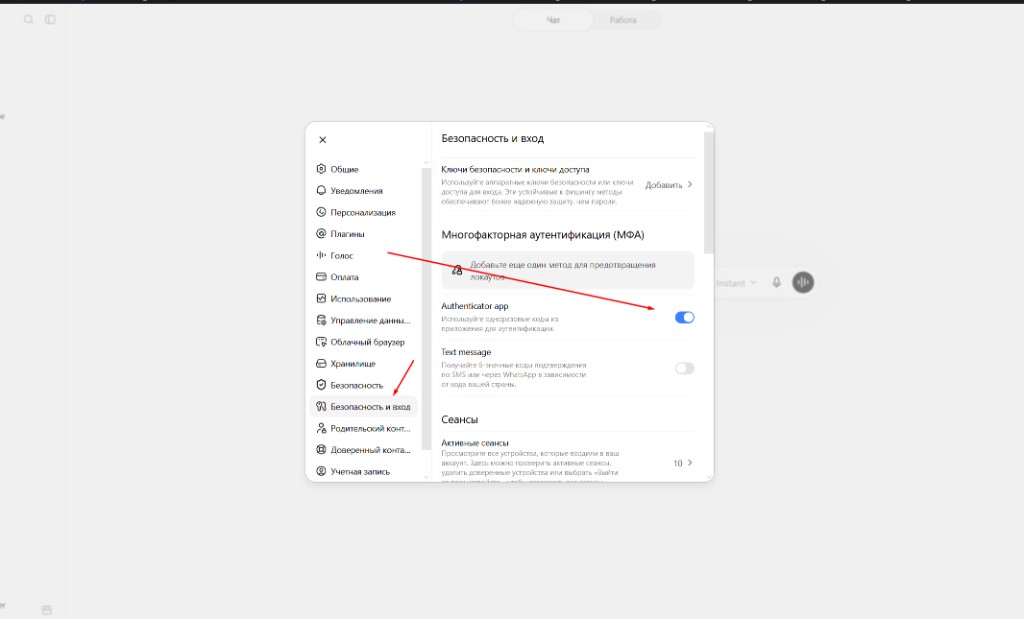
Open Security and login, then find Authenticator app. -
2
Turn Authenticator app off
Turn the Authenticator app toggle off. When the confirmation window appears, click Remove / Delete.
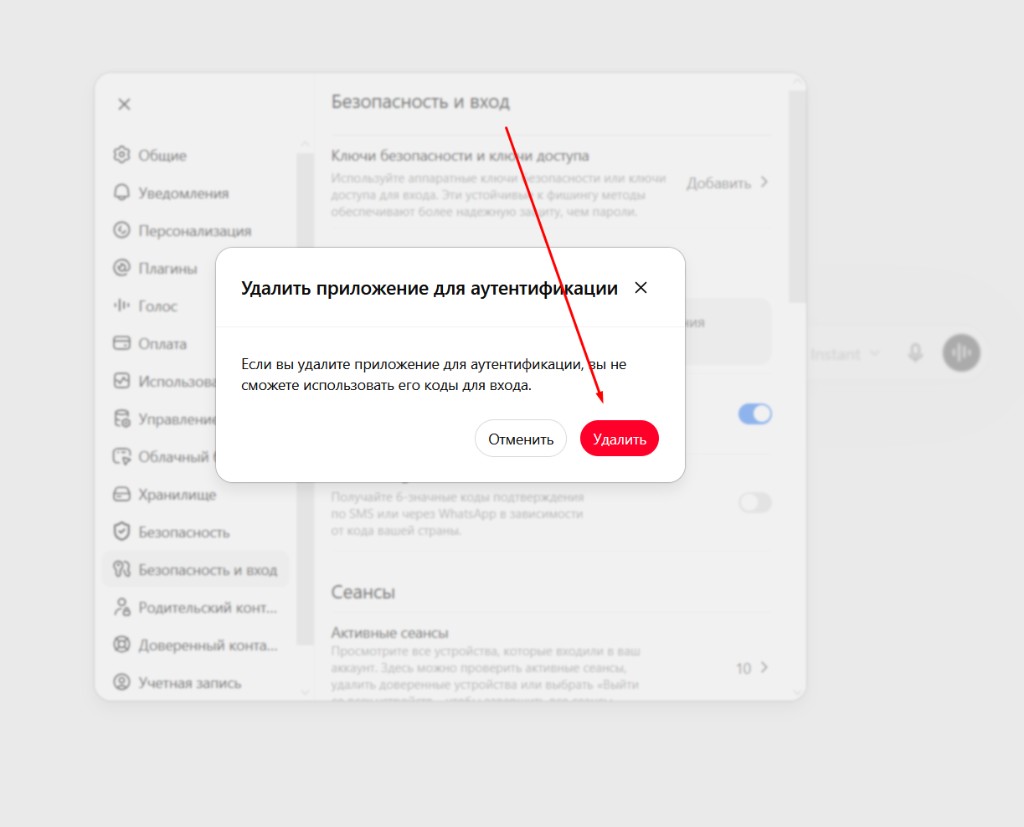
Confirm removal by clicking Remove / Delete. -
3
Turn Authenticator app on again
After it is disabled, turn the Authenticator app toggle back on to start a new setup.
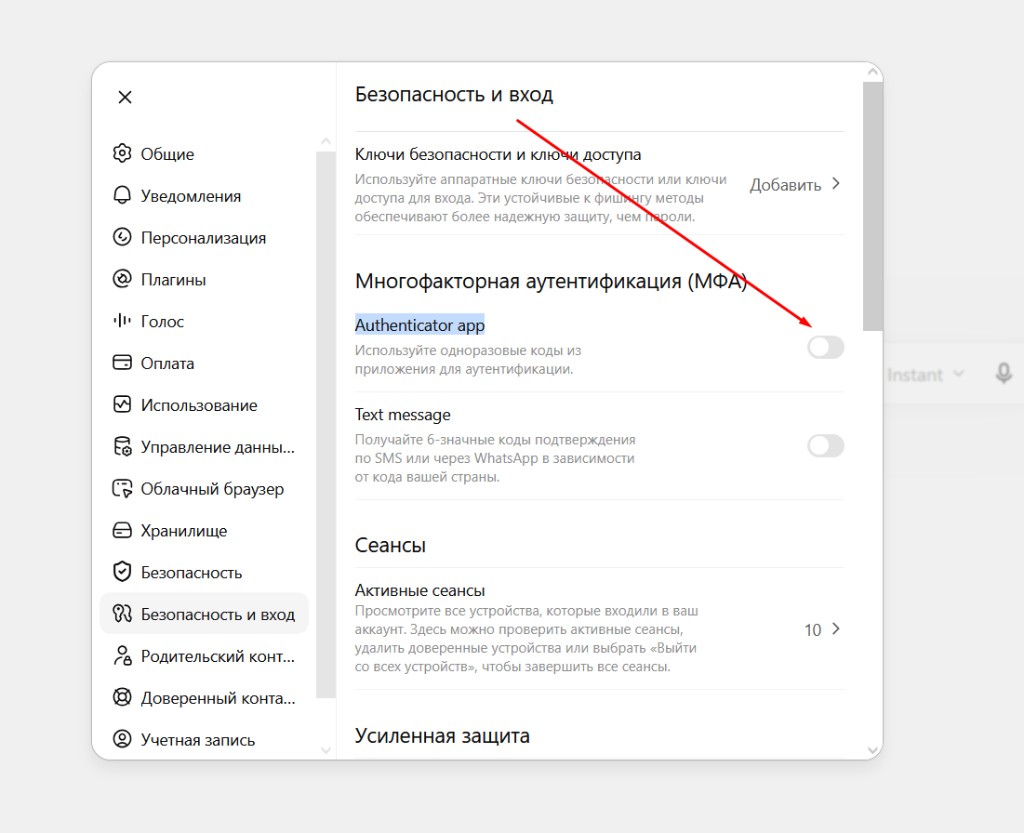
Turn Authenticator app back on to continue setup. IMPORTANT — If the system redirects you to email verificationPlease do not close the tab — immediately press the Back button.
I turned off App Auth and when I click it again it redirects me to email — how do I fix this?
IMPORTANT — If the system redirects you to email verificationPlease do not close the tab — immediately press the Back button.
If turning Authenticator app off/on automatically redirects you to email verification, create a passkey on the account first.
After the passkey is created and you are sure it works, open the account in another browser on the same device. Then enable Authenticator app again and repeat the 2FA change steps above.
Create a passkey from Security keys and passkeys → Add. -
4
Choose how to add the authenticator
You can add your own authenticator app (for example linked to your Gmail). You can also create a Secure Passkey, but you must still turn off or change 2FA. If you prefer not to use your own app, click Problems scanning? under the QR code.
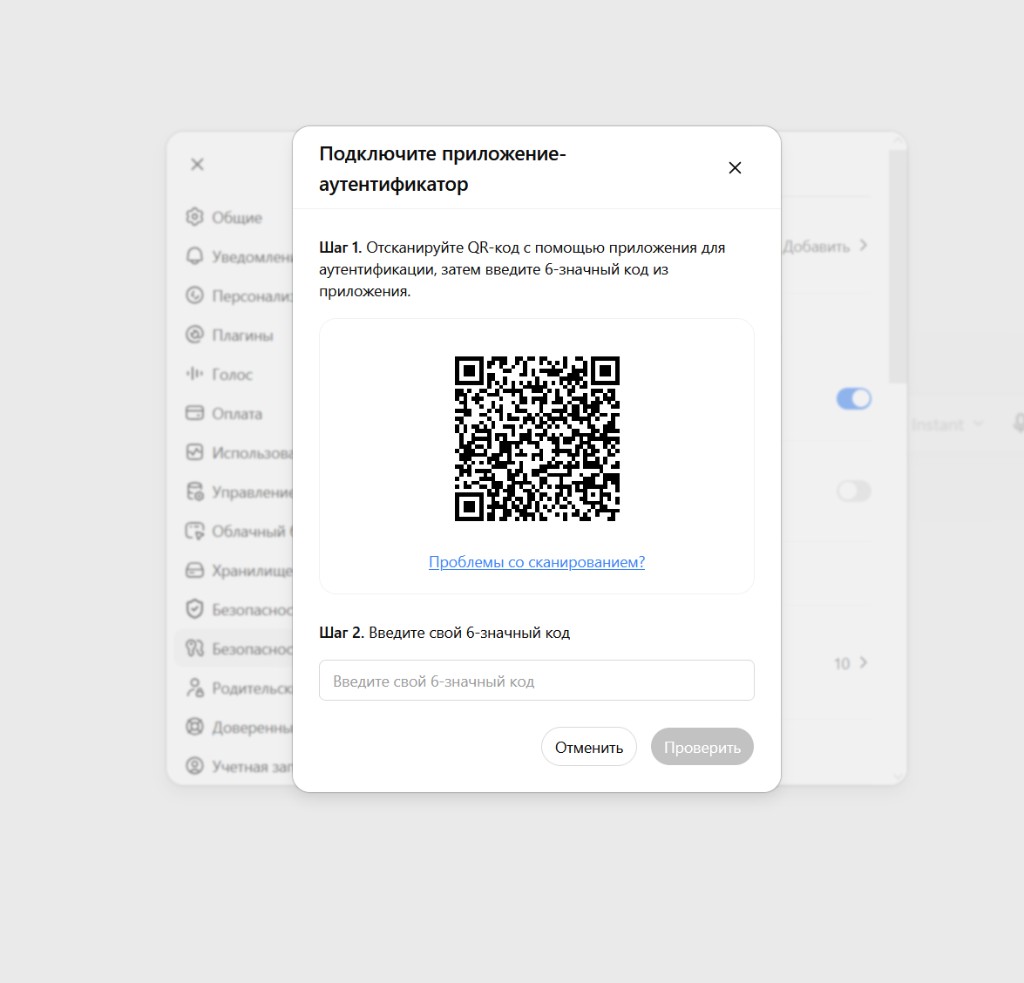
Click Problems scanning? to show the 2FA Key. -
5
Copy the new 2FA Key
Copy the 2FA Key shown on the screen. Keep this key safe — you will use it for future logins.
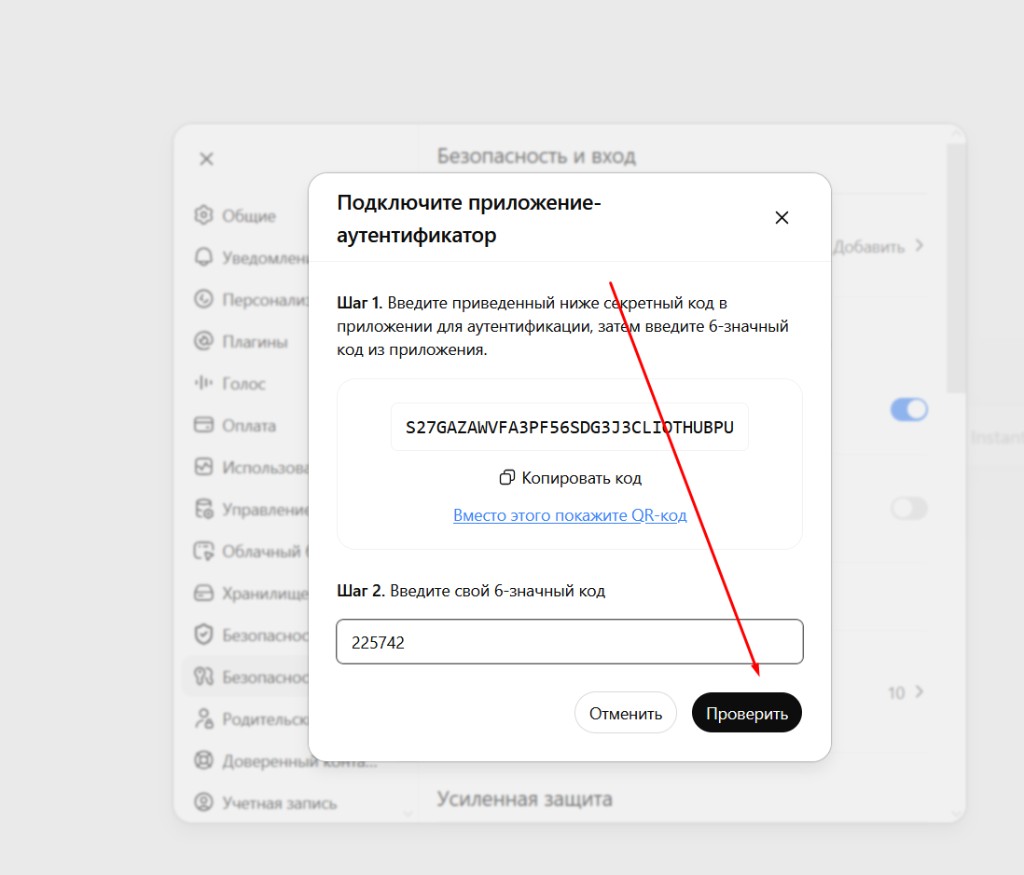
Copy the new 2FA Key, generate a code, then click Verify. -
6
Generate a code and verify
Open 2fa.fun, 2fa.cn, or another 2FA site, paste the new 2FA Key, copy the generated 6-digit code, enter it in ChatGPT, and click Verify / Check.
Paste the new 2FA Key on 2fa.fun / 2fa.cn and copy the 6-digit code. -
7
Save your new 2FA Key
From now on, log in using this new 2FA Key. Store it somewhere secure and do not lose it.
Do not lose your new 2FA Key. Store it somewhere secure.
CODEX Activation
Only follow this section if CODEX was included with your purchase.
If you did not purchase CODEX, don’t worry — message us and we will help you.
-
1
Open the CODEX activation page
Open the CODEX activation page delivered with your order. Make sure the SMS CDK tab is selected.
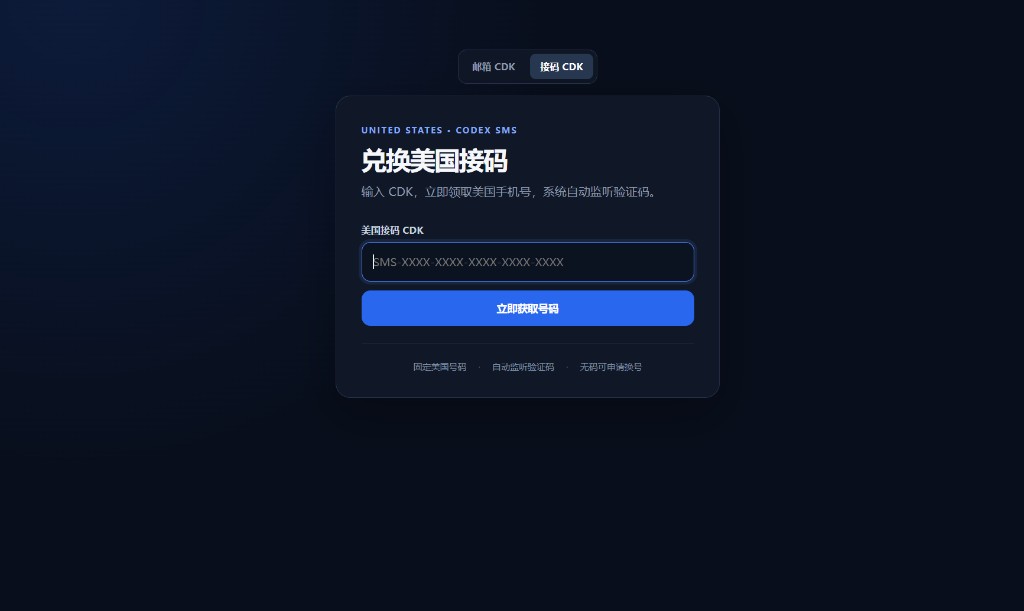
Open the CODEX activation page and select the SMS CDK tab. -
2
Enter the CDK Key
Enter the provided CDK Key in the field, then click the button to get a number.
Possible Problems
Click a question below to open the solution.
CDK Key appears as already used — what should I do?
NOTEIf the CDK Key appears as already used, message us and we will replace it.
-
3
Copy the phone number
Copy the US phone number shown on the left side of the CODEX page.
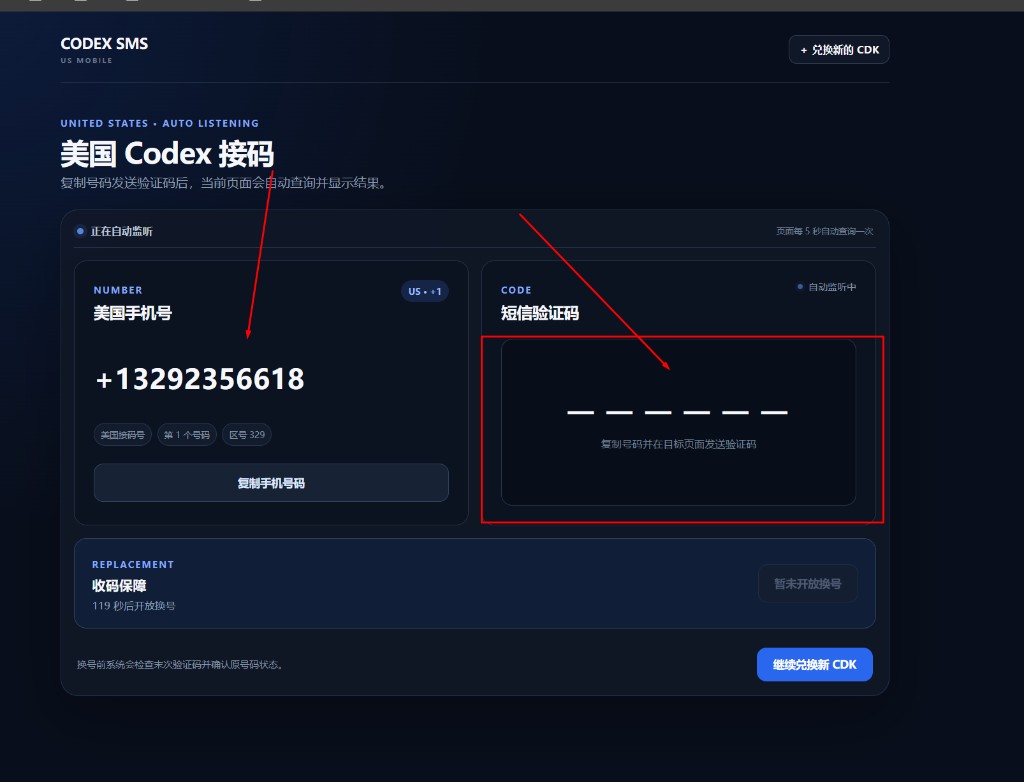
Left: copy the number. Right: the SMS code will appear here. Possible Problems
Click a question below to open the solution.
I’m trying, but ChatGPT doesn’t send the code and shows an error — what should I do?
NOTEIf ChatGPT cannot send a code to this number, there is likely a problem with the number as well. Click the red button at the bottom right — the number will change. Use the new number.
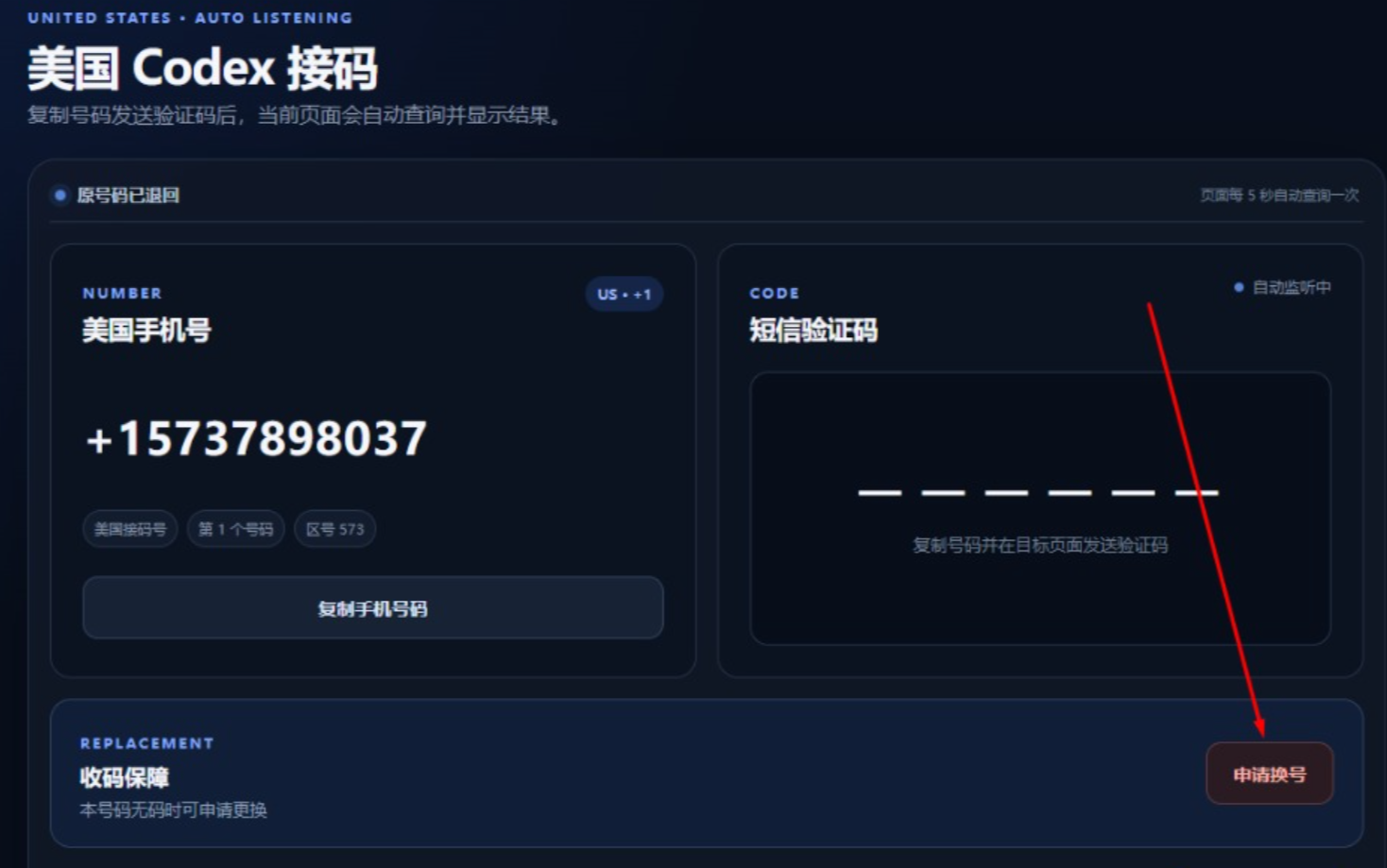
Click the red button at the bottom right to request a new number. -
4
Enter the number in ChatGPT
When ChatGPT asks for phone verification, paste this number and request the SMS code.
-
5
Wait for the SMS code
After ChatGPT sends the code to the number, the verification code will appear on the right side of the CODEX page.
Copy the code from the right side and enter it in ChatGPT.
-
6
Complete verification
Enter the received verification code in ChatGPT to complete verification.
Possible Problems
Click a question below to open the solution.
Verification finished, but I see an unknown error — what should I do?
NOTEIf after entering the code you see session errors or other unusual errors, the issue is most likely related to the IP address. This mainly applies to Russian users / ChatGPT-restricted countries using VPN — try a higher-quality proxy/VPN, preferably Finland. EU users usually do not need a VPN. After the process is complete, log out of ChatGPT and log back in — everything should be fixed.
If the code does not arrive, watch the button at the bottom right. When that button turns from blue to red, click the red button and get a new number. Then repeat the steps with the new number.
Verification is complete.
Important Security Information
- Replace the supplied 2FA configuration after first login.
- Never publicly share passwords, 2FA Keys, CDK Keys, session information, or verification codes.
- Store your new 2FA Key securely.
- Do not share the account with others. Do not give it to anyone and do not use it jointly.
Account Usage Guide
Follow these rules to reduce the risk of account bans and login problems.
Keep credentials private
Do not share account details with anyone: email, password, 2FA Key, CDK Key, or verification codes.
No shared use
Do not use the account jointly, do not let others use it, and do not resell or share access with other people.
VPN for RU users
If you are in Russia or another ChatGPT-restricted country, use a high-quality proxy/VPN. Prefer a Finland location. Avoid cheap low-quality VPNs.
EU users
Users in the EU normally do not need a VPN.
Change 2FA
After first successful login, change or replace the supplied 2FA and keep your new 2FA Key safe.
After CODEX
If you used CODEX and then see session errors, log out of ChatGPT and log back in. For Russian / restricted-country users, also check your VPN/IP quality.
Troubleshooting
These solutions match the steps in this guide. Open the issue that fits your case.
Incorrect 2FA Code error
Compare the 2FA Key from your order with the key you pasted on 2fa.fun / 2fa.cn, character by character. Browser auto-translate or keyboard mistakes can change even one character and create a wrong code. Prefer copy → paste. Use the newest 6-digit code only. If it still fails, contact us.
Login redirects me to an email code
You probably did not sign in with email and password, or leftover browser cache/session is conflicting with the system. Try signing in from your phone first — you should see that everything works. Then on your computer, change the VPN: if you connect from the EU, use a USA location temporarily; if you connect from Russia, use a higher-quality VPN. If the error continues, message us and we will fix it.
Turning Authenticator app on redirects to email
Create a passkey first (Security keys and passkeys → Add). After it works, open the account in another browser on the same device, turn Authenticator app on again, and continue the 2FA change steps.
Verification code expired
Codes last only a short time. Go back to 2fa.fun / 2fa.cn, copy the newly generated 6-digit code, and enter it immediately in ChatGPT.
CODEX SMS code does not arrive / ChatGPT cannot send to the number
Keep the CODEX page open. When the bottom-right button turns red, click it and get a new number. Enter that new number in ChatGPT and request the code again. The SMS appears on the right side of the CODEX page.
CDK Key appears as already used
Contact the seller and ask for a replacement CDK Key.
Session or unusual errors after CODEX verification
This is usually an IP/VPN issue, mainly for Russian users / ChatGPT-restricted countries. Try a better Finland proxy. EU users usually do not need VPN. Then log out of ChatGPT and log back in.
I closed the CODEX activation page
Re-open the CODEX page from your order, enter your CDK Key again, and continue from the current step.
Frequently Asked Questions
Short answers about keys, CODEX, VPN, and warranty.
What is a 2FA Key?
A 2FA Key is the secret used on sites like 2fa.fun / 2fa.cn to generate the 6-digit login code. After you change 2FA, save your new 2FA Key securely for future logins.
Why should I change 2FA?
After the first successful login, replace the supplied 2FA so only you control the codes. You can use your own authenticator or create a Secure Passkey, but you must still turn off or change 2FA.
Where should I store my 2FA Key?
Store it privately (password manager or offline). Do not share the account, the 2FA Key, or passwords with anyone.
What is a CDK Key?
A CDK Key is used on the CODEX activation page to get a US phone number for ChatGPT phone verification. If it shows as already used, contact the seller for a replacement.
Do I need CODEX activation?
Only if CODEX was included with your purchase and ChatGPT asks for phone verification. If you did not buy CODEX, message us and we can help.
Do I need a VPN?
VPN is mainly for Russian users / ChatGPT-restricted countries. Prefer a quality Finland proxy. EU users usually do not need a VPN.
What is the warranty period?
The 3 / 7 / 14 / 30-day options are warranty periods for after-sales support, not the account age or lifespan. Example: a 3-day warranty does not mean the account stops on day 4. Accounts are new, unused, come with 30-day ChatGPT Plus, and may stay active longer when possible. If an issue on our side happens during your selected warranty, we provide free support or a replacement.
Are the accounts new and unused?
Yes. All accounts are newly created with an active 30-day ChatGPT Plus subscription. They are unused and no ChatGPT usage limits have been consumed.
Can I share the account?
No. Do not share the account jointly or give it to anyone. Keep passwords, 2FA Keys, and CDK Keys private.
Was my account deleted? I was logged out
If you were suddenly logged out of the session, the account may have been deleted. To check: open chatgpt.com in a browser (on phone, use the browser — not only the app), try to sign in, and send us a screenshot of the result. If the issue is confirmed and you are still within the warranty period, we will replace the account.